Getting started
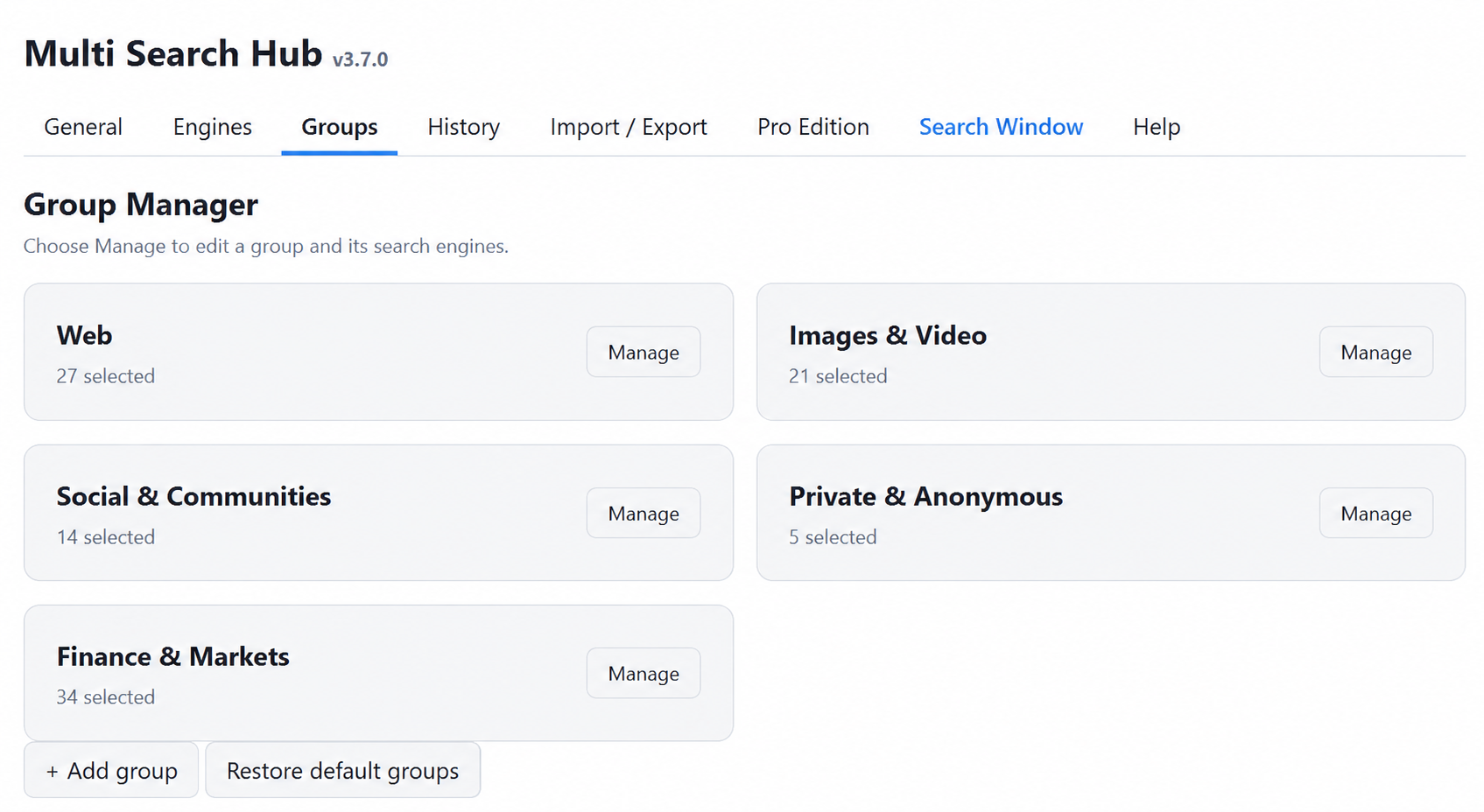
Open Multi Search Hub from the browser toolbar. The blue group card shows the active group. Choose a search type, enter your query, and select consolidated results or individual tabs. The Search Window is the full-size, resizable interface.
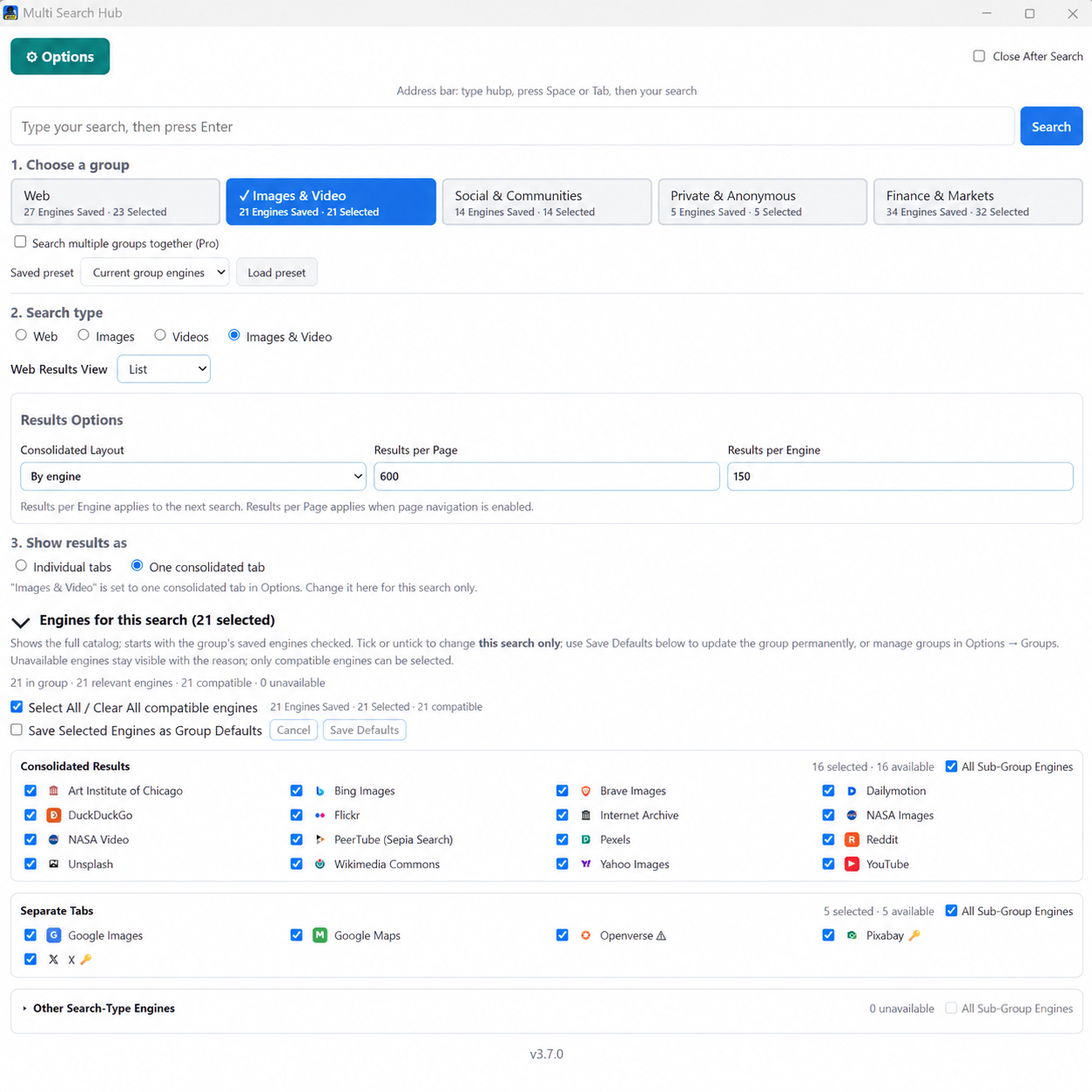
The built-in groups include Web, Images & Video, Social & Communities, Privacy Engines, and Finance & Markets. Each group filters the available sources; some websites require manual opening or sign-in.
Groups and engine selections
Open Options → Groups to see the compact Group Manager. Select Manage to inspect a group. The Web group includes the general catalog; specialized groups contain relevant sources only.
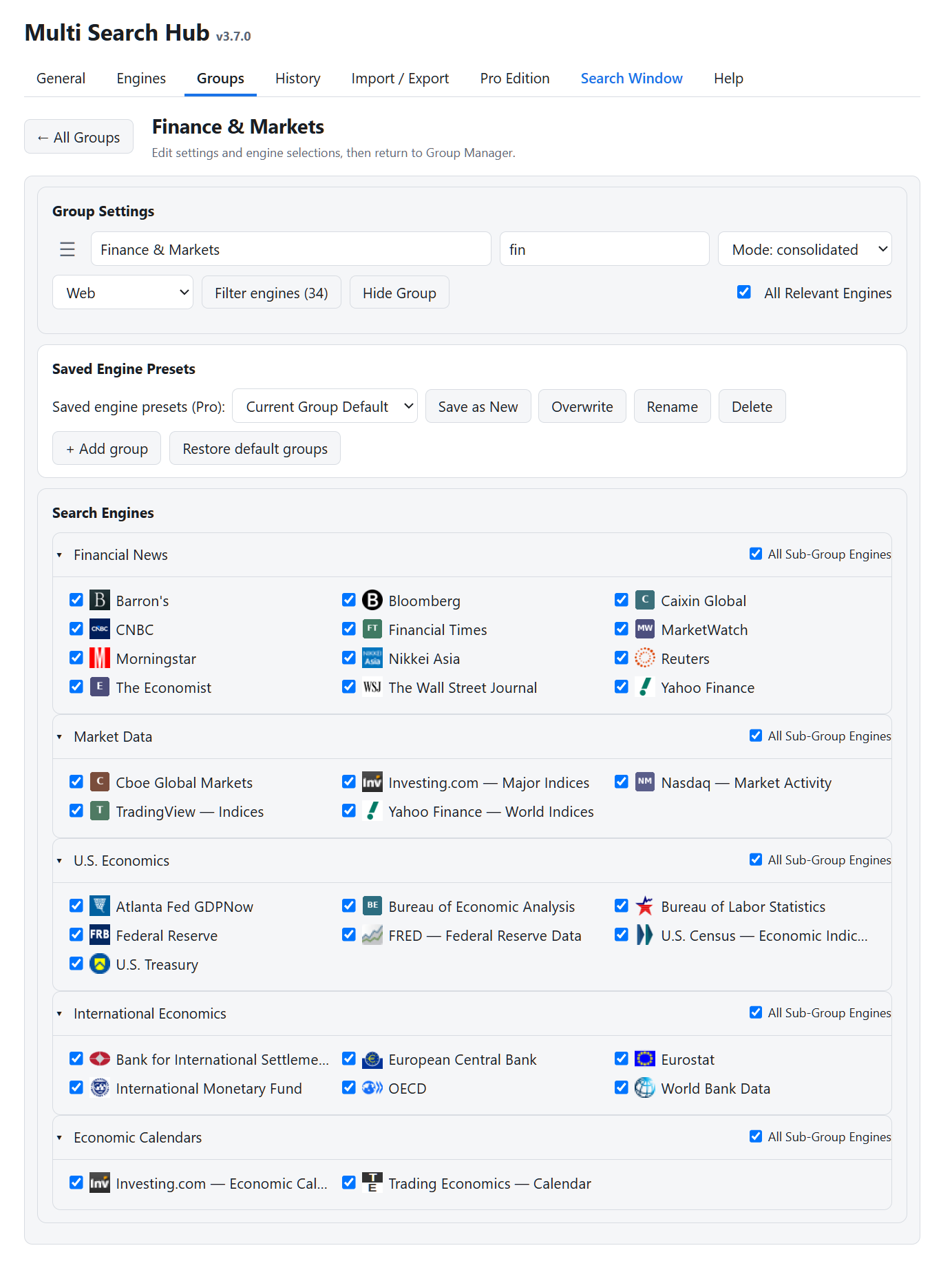
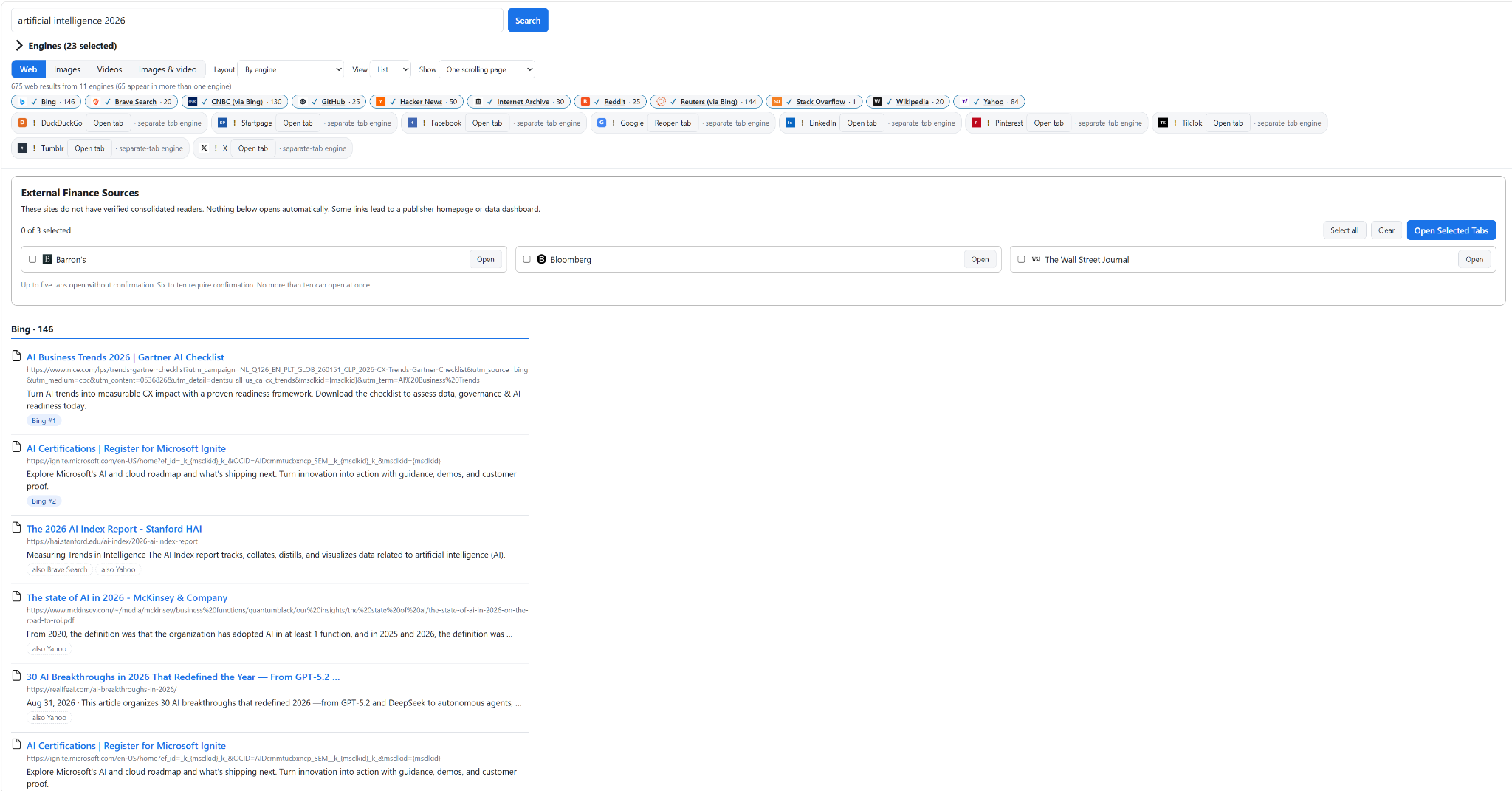
The built-in Finance & Markets group separates sources into five categories. External Finance Sources appear in a manual-opening checklist where a consolidated reader is unavailable. Some features in the illustrated Pro screens are not enabled in Free.
Understanding results
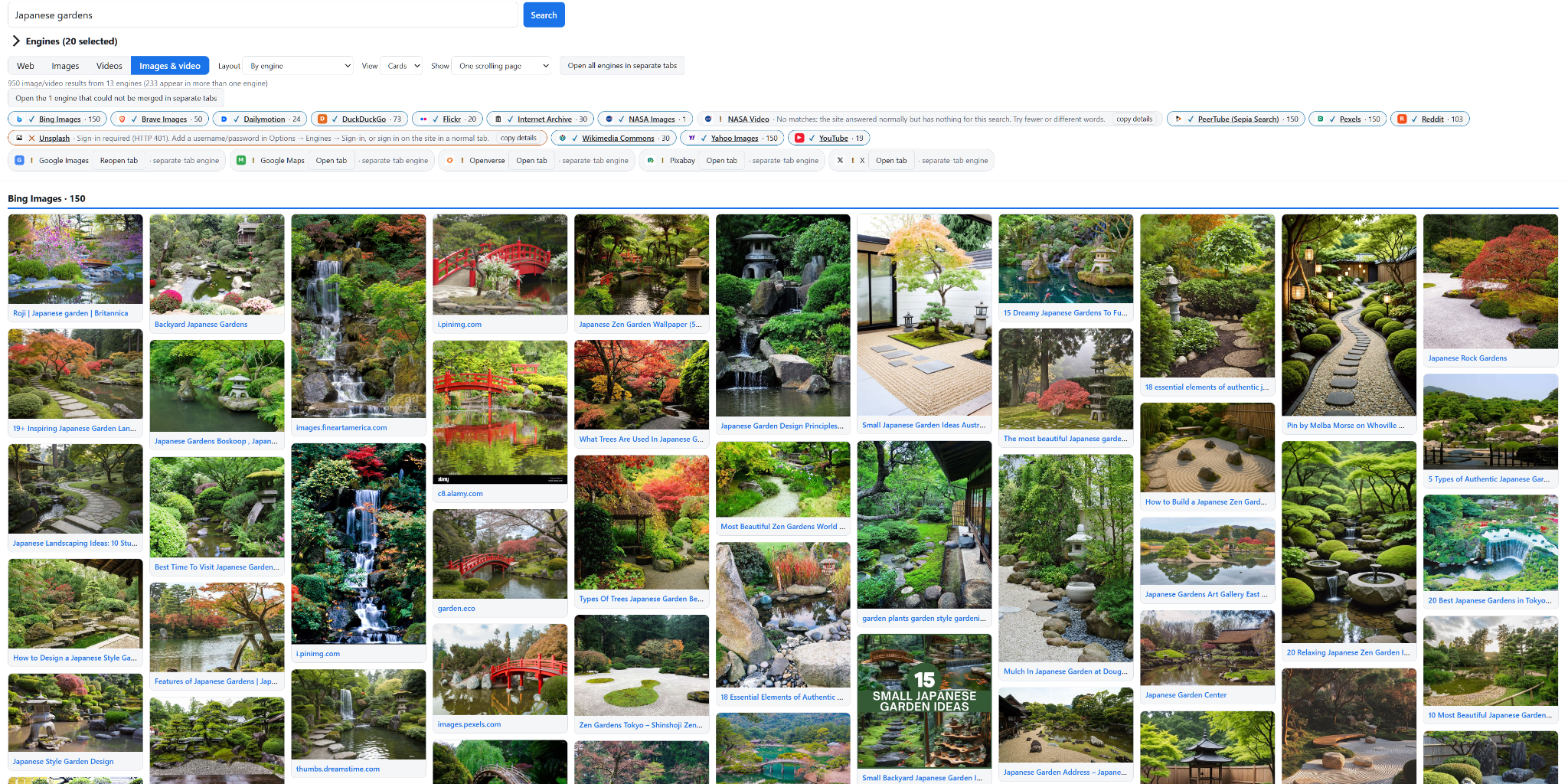
Supported providers return consolidated results in one results page. Choose List or Cards where offered, and switch search type for Web, Images, Videos, or Images & video.
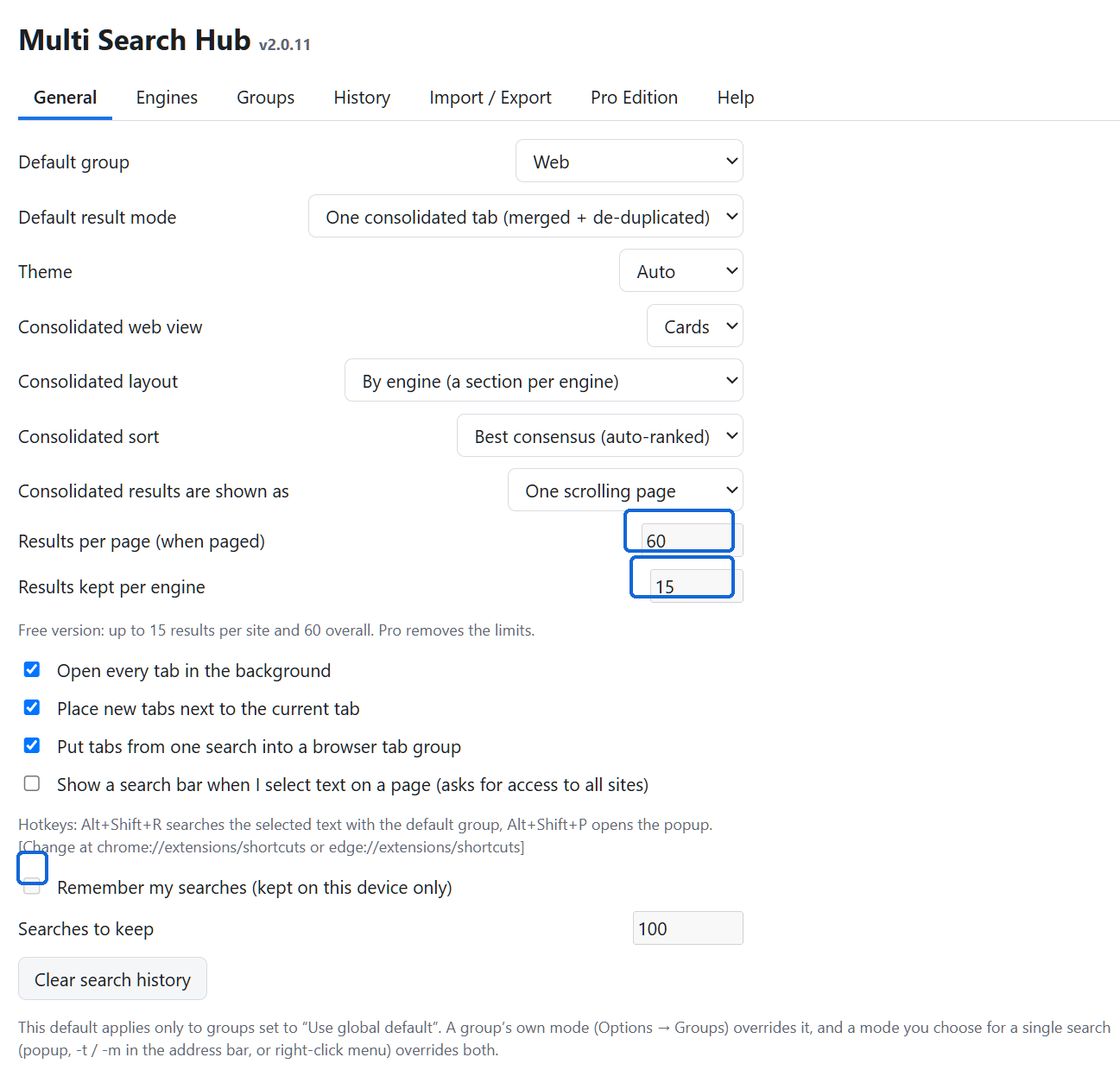
Sources that block automated retrieval may require opening their own websites. External Finance Sources are opened only when explicitly selected. Free is limited to 15 results per engine and 60 total.
Preferences and Free restrictions
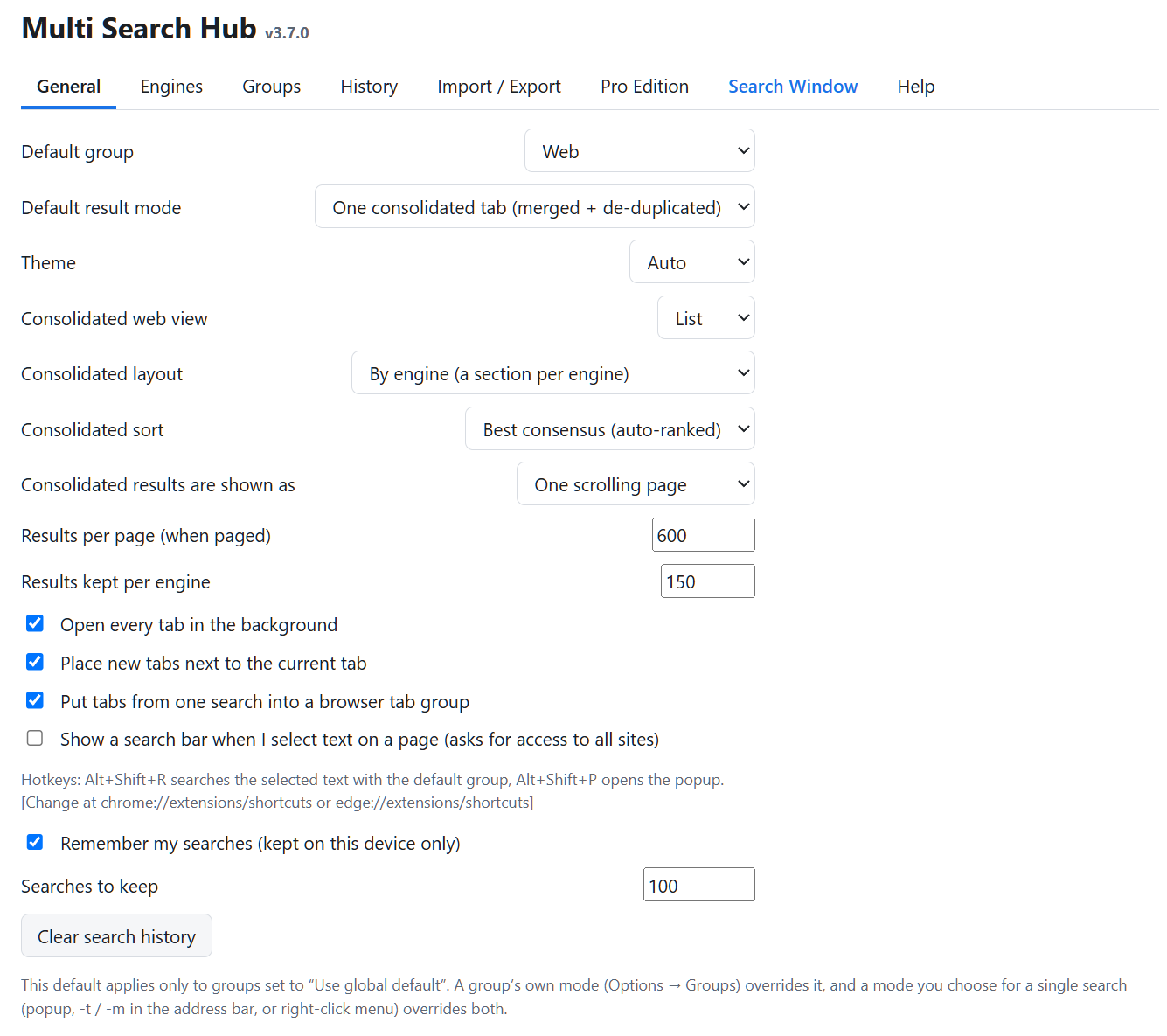
Under General, configure the default group, theme, search mode, and tab handling. Some numerical controls are locked in Free.
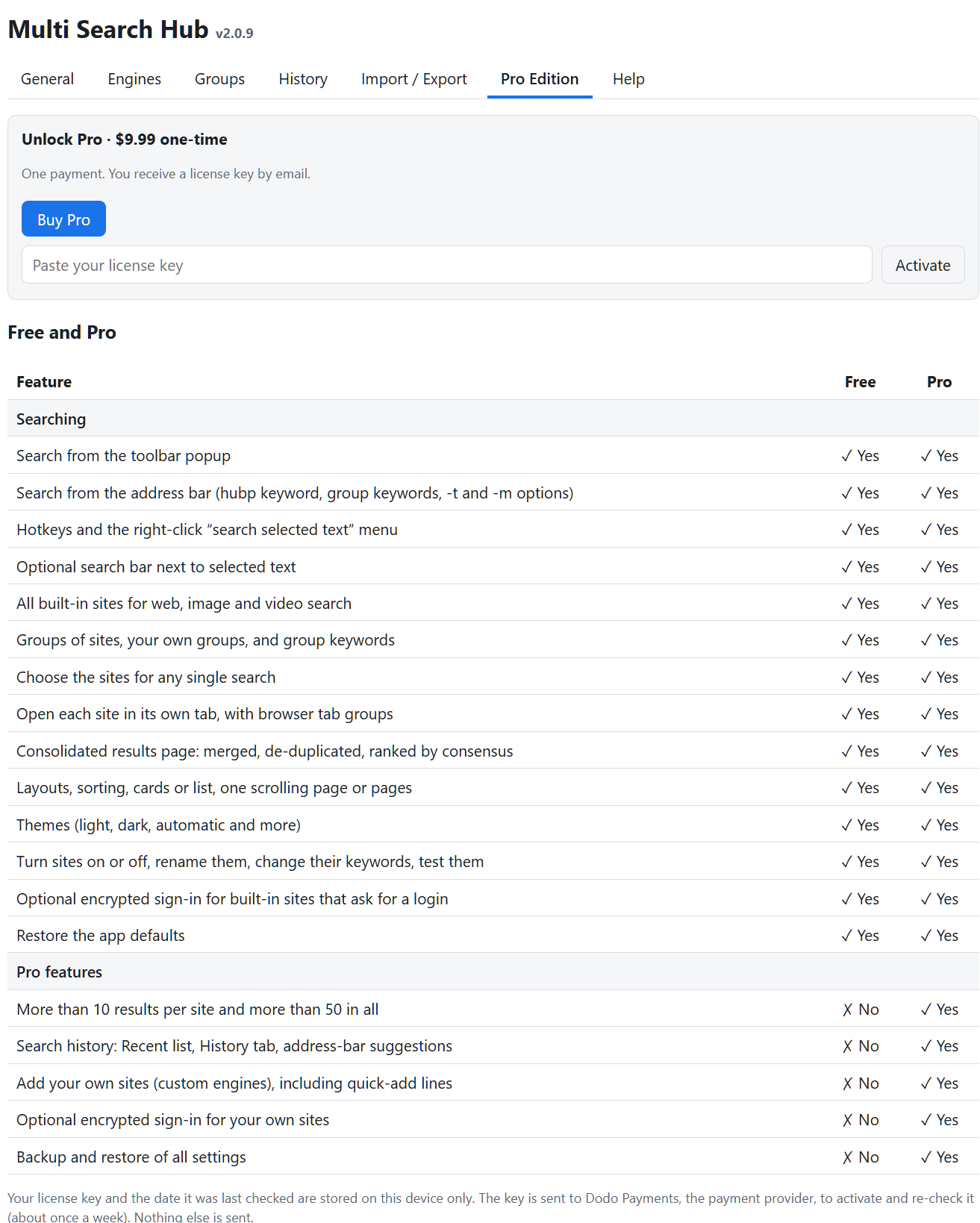
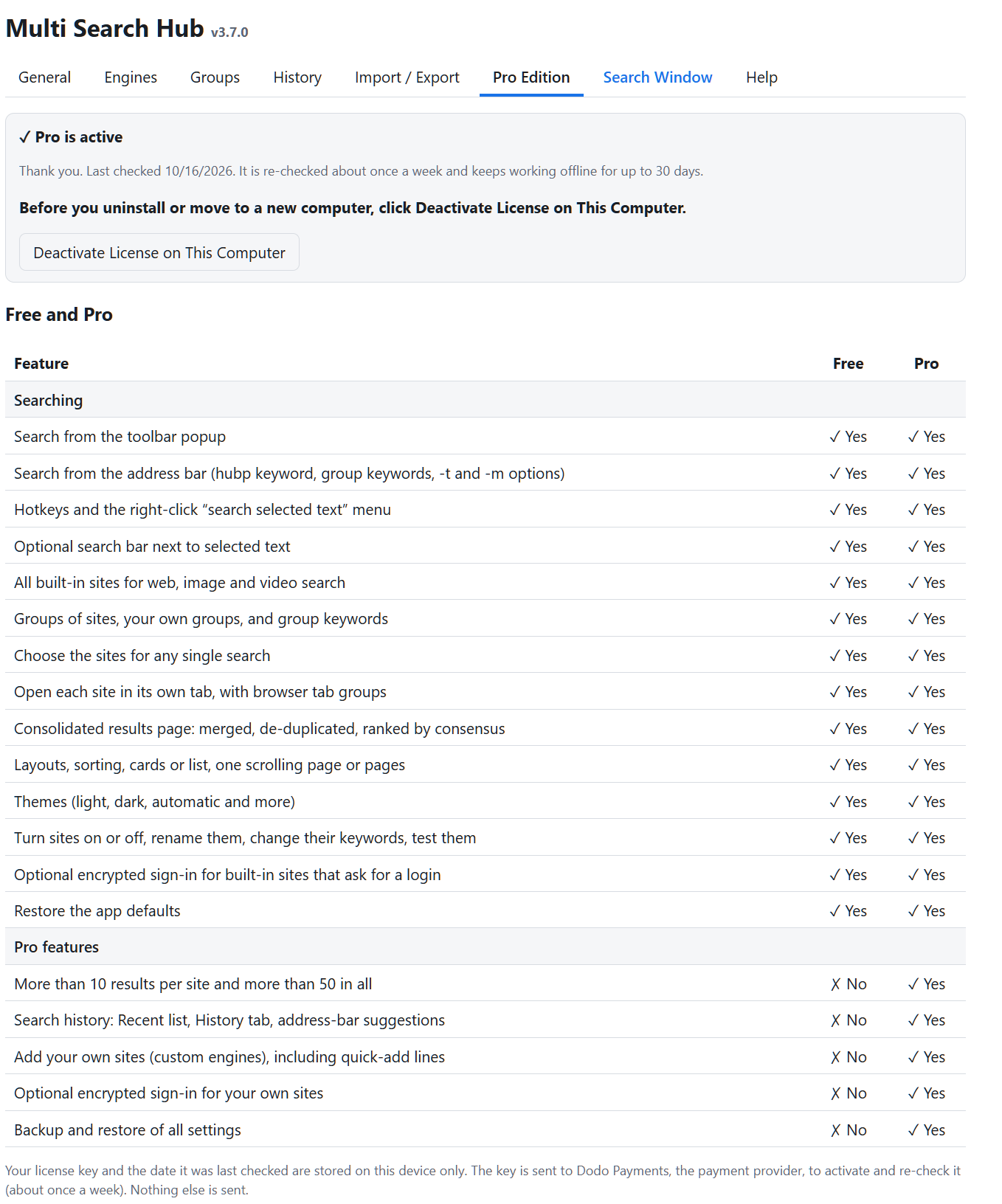
Free uses a fixed 15-per-engine/60-total results ceiling. Search history, custom engines and groups, named presets, and JSON backup/restore are Pro features. Do not interpret Pro screenshots as showing Free entitlements.
Upgrading to Pro
In Pro Edition, review the comparison and choose the one-time $9.99 upgrade if you want Pro functionality. Activation is completed using the license key supplied after purchase. Payment and availability are subject to the current checkout screen.
Free and Pro are modes of the same extension; do not install a second copy merely to unlock Pro.
Help and shortcuts
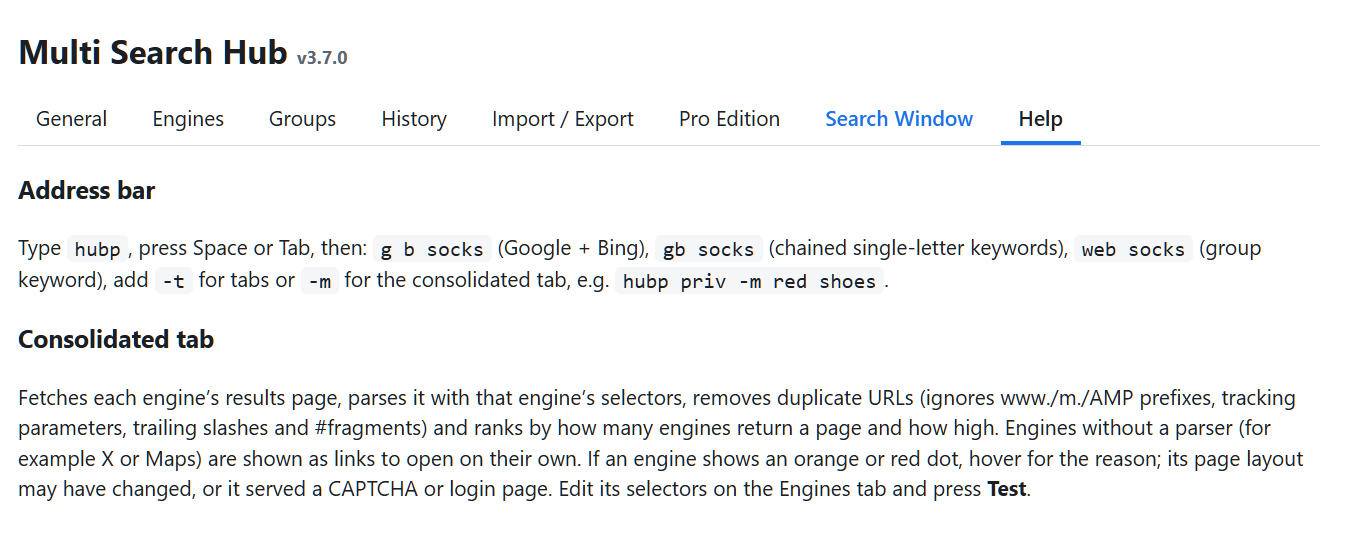
Use the blue Search Window link in Options or the top Quick Access toolbar in the popup to open or focus the resizable Search Window.
The browser address-bar keyword shown in this v3.7.0 interface is hubp. Confirm the installed manifest keyword in your browser before relying on address-bar shortcuts. For more commands see Options → Help.